

- Ever change the logic in your query, confirm new data in SQL, run the report from SSRS… and get the old data?
- Ever change the columns in your query, run the report from SSRS… and get a weird error–or just not get any data in the new column in the report, but you can see it in SQL?
- Even if you click the Refresh button????
This occurs because SSRS automatically caches the data for the most recent run of the report. SSRS will use the cached data until it expires, or certain conditions change:
- The report definition is modified
- The report parameters are modified
- The data source credentials change
- Report execution options change
- The report cannot be rendered from the cache for any reason
Cached files are stored in the Solution folder with the name of the report definition and a file extension of .data. These files can be deleted directly in Windows Explorer, but caution must be taken not to delete the report definition by mistake (easily made if the folder option(s) hide the file extensions of known types).
An easier (and safer) solution is to create an option in SQL Server Data Tools to clear the cached files with a click of the mouse.
- Start SSDT
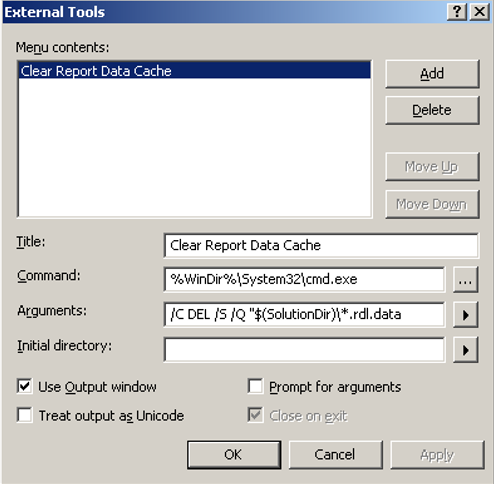
- On the SSDT main Menu click Tools, External Tools…
- Either use the [New Tool1] entry, or click Add to get a new entry:

- Checkmark these options:
- Use Output Window
- Close on Exit
You should have something like:
- Click Apply, click OK.
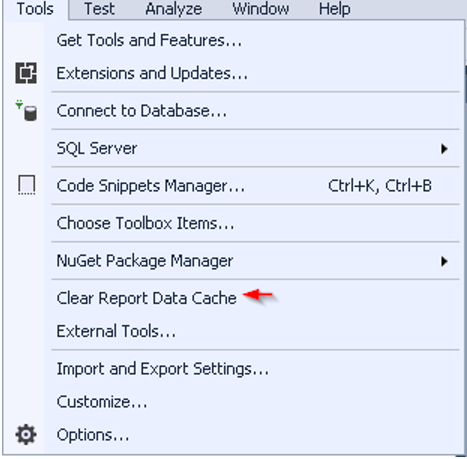
Now check your Tools menu… Clear Report Data Cache will now appear as an option.
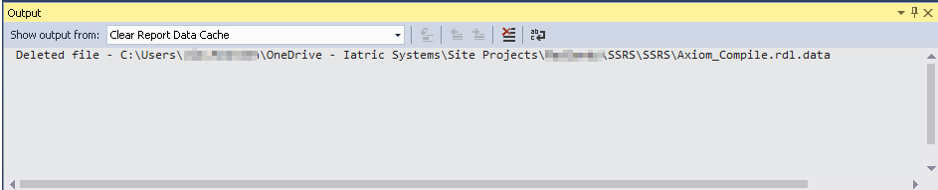
When you run the command… Files deleted from the cache show up in the Output window:
What Else?
In some versions of SSRS, you can set the configuration parameter CacheDataForPreview to False and prevent this behavior. However, this option does not seem to be honored in all versions.
So if you want to go that way, test the change and validate the expected behavior.
Extra Credit
TechNet – SSRS: How to remove cached report data in Visual Studio
And…
As ever, if you need help with Meditech DR index creation, reporting, extract or analysis we’re here to support you.
Learn more by clicking the button below: