

For today’s blog post, we want to help solve this common problem: how to limit the number of columns in a matrix to prevent it from exceeding the page width, when there may be any number of columns.
The following information is based on Limit no of columns in SSRS matrix report By Challen Fu, Microsoft.
Introduction
Our examples are drawn from a report which provides the locations in MEDITECH (6.x) where MIS documentation sections are used.
Each location is represented by the AttachedToPath column in the dsMain dataset.
At the end of the report a matrix is built showing the number of times an individual MisDocSectID is used in each AttachedToPath, but we don’t want that to blow out the page. Thus, we need to limit the display to the TOP X counts.
SSRS Data
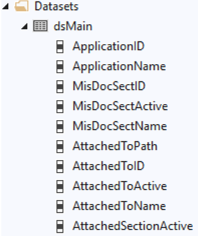
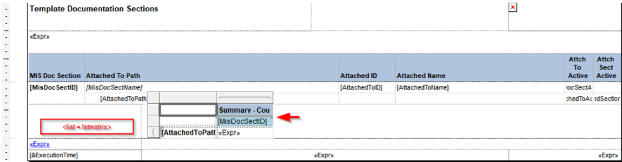

Our matrix contains a row group, grpAttachedToPath (value = Fields!AttachedToPath) and a column group, grpMisDocSectID (value = Fields!MisDocSectID).
The summary expression = CountDistinct(Fields!AttachedToPath.Value + “^” + Fields!AttachedToID.Value)
Solution
Step 1: Right click on the report, Report Properties, Code
Add the following code:
<br />Dim FlagTable As System.Collections.Hashtable</p><p>Dim Flag AS Integer</p><p>Function MaxCol(ByVal NewValue As Object) As Integer</p><p>If (FlagTable Is Nothing) Then</p><p>FlagTable = New System.Collections.Hashtable<br />End If</p><p>If (NewValue Is Nothing) Then</p><p>NewValue = "-"<br />End If</p><p>If (Not FlagTable .Contains(NewValue )) Then</p><p>Flag =Flag + 1</p><p>FlagTable.Add(NewValue, nothing)<br />End If</p><p>MaxCol= Flag</p><p>End Function<br />
Step 2: Add a list to the report
Right Click the Details group, Group On, Fx button, add:
=Ceiling(Code.MaxCol(Fields!MisDocSectID.Value)/9)
Note:
| Fields!MisDoctID.Value = will be the column group of the matrix 9 = maximum number of columns you want to display on the matrix. |
Right-click on the list, Properties, Sort
| Sort by the column of the matrix: | |
| Fields!MisDocSectID.Value |
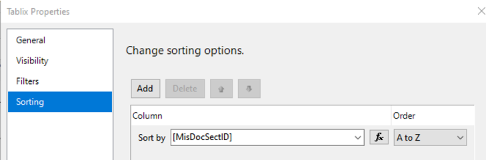
Step 3: Drag the matrix onto the list
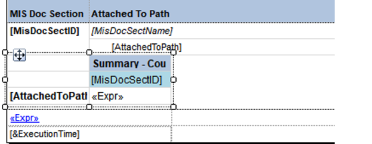
Sample output:
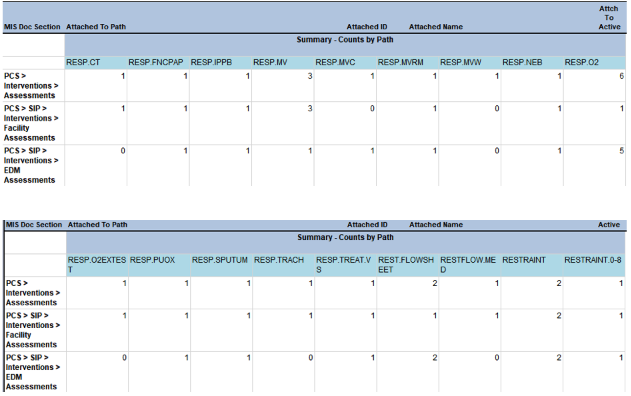
These examples are part of a much bigger set of reports we could deploy for you which let you find where document sections, queries, interventions, etc. are attached in your MEDITECH configuration.
Want more DR-related tips, knowledge-base articles, how-to videos, standard reports and a whole constellation of pre-built functions, module-specific views, stored procedures and additional capability for your DR? Consider the DR Resource Center!
And…
As ever, if you need help with MEDITECH DR optimization, reporting, extracting, index creation or analysis we’re here to support you.
Learn more by clicking the button below: